
Demo Spellbook, get an Oura Ring 5*
See how Spellbook helps legal teams draft contracts faster than ever before.
Book Demo
How to Redline in Microsoft Word: A Professional Guide for Lawyers
.jpeg)


Redlining in Microsoft Word is the process of tracking revisions within a legal document using the Track Changes feature so that all edits remain visible to all parties. It serves as the primary mechanism for maintaining version control during contract review and negotiation.
Precise redlining helps protect privileged information and provides a transparent audit trail for every modification. It also reduces time spent on administrative document management and helps minimize formatting errors during high-stakes transactions.
This guide covers how to configure Track Changes, compare document versions, manage formatting and numbering conflicts, and how to prepare final drafts by reviewing and removing metadata.
[cta-1]
How to Turn On and Set Up Redlining in Microsoft Word
Activating Track Changes

To begin redlining, enable the Track Changes feature. When this function is active, Microsoft Word records every edit as a tracked change rather than a permanent modification. This allows your counterparty to identify exactly what you altered in the draft document.
You can activate this feature in two ways:
- Keyboard Shortcut: Press Ctrl + Shift + E (Windows) or Command + Shift + E (Mac).
- Ribbon Menu: Click the Review tab and select the Track Changes button.
Once activated, Microsoft Word will display edits as tracked changes rather than permanent modifications. By default, deleted text typically appears with a strikethrough, while inserted text appears underlined or in a different color, depending on your Word settings and display preferences.
You can customize how revisions appear using the markup visibility options in the Tracking group on the Review tab. Changes can be displayed:
- Inline, where edits appear directly within the text;
- As a simple markup indicator, shown as a red vertical line in the left margin next to changed text; or
- In Balloons, which display revisions or comments in the right margin.
Some legal professionals prefer to show insertions and deletions inline for easier drafting review, while displaying comments in balloons and formatting changes only as margin indicators to reduce visual clutter.
Navigating the Review Tab
The Review tab contains the primary tools used for redlining contracts. It is located on the top ribbon menu between the Mailings and View tabs. This tab contains three critical groups for your workflow:
- Tracking: Controls the Track Changes toggle and the markup display settings.
- Changes: Allows navigation between edits and provides either Accept or Reject options.
- Comments: Allow reviewers to explain the rationale for redlines, a standard contract redlining best practice.
If the Review tab is not visible, you can right-click the ribbon and select Customize the Ribbon to ensure it is enabled in your version of Word.
Using Simple Markup for Readability
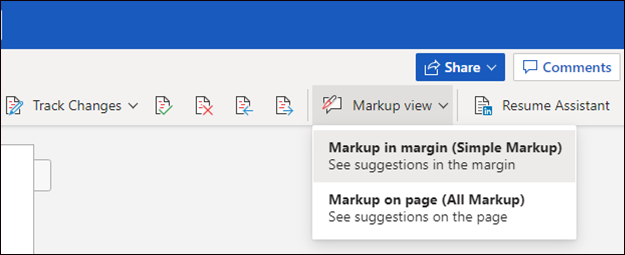
Heavily negotiated contracts can become difficult to review when extensive redlines clutter the page. To maintain clarity without losing track of edits, you can adjust your view using the Simple Markup setting.
Found in the Tracking group on the Review tab, Simple Markup hides the detailed inline revisions and instead places a vertical red bar in the margin next to any line that contains a change. This allows you to read the document's current flow while maintaining a clear indicator of where edits exist. You can click the red bar at any time to toggle between the clean view and the detailed All Markup view.
By using Simple Markup, you can focus on the legal substance of the agreement without the distraction of extensive formatting marks.
Customizing and Locking Track Changes for Multiple Reviewers
Negotiating complex commercial agreements often involves multiple stakeholders, including internal subject-matter experts and representatives from the counterparty. To maintain an organized and defensible record of negotiations, every edit must be correctly attributed, and the tracking mechanism must remain active throughout the document lifecycle.
[cta-2]
Assigning Reviewer Colors and Identification
Microsoft Word automatically assigns a distinct color to each reviewer. However, these colors are not fixed; they may appear differently on different monitors or change when the document is opened on another device. The most reliable method for identifying contributors is through the User name associated with the edits.
To verify or update your identification settings before you begin a review:
- Navigate to the File tab and select Options.
- Under the General section, locate the area labeled Personalize your copy of Microsoft Word.
- Enter your full User name and Initials.
- Select the checkbox for "Always use these values regardless of sign-in to Office" to ensure consistency across different sessions.
Accurate identification supports accountability and facilitates communication between parties.
Securing the Document with Locked Tracking
In complex negotiations, maintaining the integrity of the audit trail is critical. Word’s Lock Tracking feature prevents Track Changes from being disabled without a password.
To enable:
- Go to the Review tab on the ribbon.
- Select the Track Changes drop-down menu.
- Click Lock Tracking.
- Enter and confirm a password when prompted.
Once enabled, the option to toggle Track Changes off is disabled for all users who do not possess the password. This practice can help demonstrate the "reasonable efforts" required to protect document integrity and may reduce the risk of unauthorized edits being introduced into the agreement.
Before circulating a final clean version, tracking must be unlocked, and a comparison against the last agreed redline should be performed.
Comparing Document Versions to Generate a Redline
Comparing document versions is a critical part of the review process and often necessary to support a defensible review. Manual review alone may not capture all changes, particularly in lengthy or heavily negotiated agreements.
Legal teams should use automated comparison tools to generate an accurate redline that captures every addition, deletion, and formatting change between the original and revised versions.
Running the Compare Documents Tool

Microsoft Word includes a native comparison engine designed to identify differences between two distinct files. This process creates a third document — the legal blackline — which displays all changes as tracked modifications.
This tool is especially valuable in exercising legal due diligence when the counterparty to the transaction provides the clean copy of the document for signatures. The compare feature allows a quick check to ensure that no undisclosed language was added to the agreement.
To execute a professional document comparison, follow these steps:
- Navigate to the Review tab on the Word ribbon and select the Compare button.
- Choose Compare from the dropdown menu to open the comparison dialog box.
- Select the Original document (the version your team last sent) and the Revised document (the version received from the counterparty).
- Click More to ensure the comparison settings are appropriately configured. For most commercial legal work, ensure that Table changes, Header/Footer modifications, and Formatting are selected.
- Select Show changes in: New document to preserve the integrity of your original files.
The result is a third document showing all tracked changes, often referred to as a blackline. The native tool functions only when both documents are in a native, editable format (DOCX). When a counterparty provides a non-native file, an additional preparation step is required.
Working with Non-Editable or Scanned PDFs
When documents are received as scanned PDFs or non-editable formats, they must be converted before comparison.
The typical preparation workflow is:
- OCR Extraction: Process the scanned PDF through an Optical Character Recognition (OCR) engine to generate a searchable, editable text layer.
- Conversion: Save the OCR-processed text as a DOCX file.
- Comparison: Run the standard Compare Documents tool using the newly converted DOCX version against your original file.
Most enterprise PDF readers and dedicated OCR utilities can handle this conversion. The integrity of the comparison depends on the quality of the OCR output, so a quick visual scan of the converted text against the source before redlining a PDF.
Managing Complex Contract Edits: Combining Feedback and Legal Numbering
High-stakes negotiations often involve multiple versions of documents, making consolidation complex. Edits must be merged carefully to preserve numbering and cross-references, as errors can create ambiguity in the final agreement.
Combining Multiple Redlined Versions
When multiple stakeholders return redlined versions of a contract, you must consolidate them into a single master document. While many users attempt to copy and paste changes manually, this practice is error-prone and can corrupt the underlying document styles.
To merge documents correctly in Microsoft Word, follow these steps:
- Open the Review tab on the ribbon.
- Select Compare and then choose Combine from the dropdown menu.
- In the dialog box, select the Original document (your last sent version) and the Revised document (the version returned with new edits).
- Under More, ensure that Track changes is selected for the "Show changes in" setting.
- Click OK to generate a new document that integrates the edits from both versions.
The combined document should be reviewed to resolve conflicting edits and to remove any internal comments before external sharing.
Fixing Broken Legal Numbering and Cross-References
Merging versions often breaks the dynamic numbering systems that lawyers rely on for document navigation. If a counterparty has hard-coded their paragraph numbers instead of using Automatic Numbering, or if they have pasted a clause from a different document, the numbering sequence will likely fail.
Broken cross-references — such as a clause that still points to "Section 4.2" after that section has been deleted — can create ambiguity in the agreement.
To maintain a defensible document structure:
- Use Styles for Numbering: Do not type numbers manually. Use the Multilevel List feature linked to Paragraph Styles. This allows the entire document to renumber itself automatically when a clause is moved or deleted.
- Insert Dynamic Cross-References: Use the Cross-reference tool under the References tab. This creates a link to a specific paragraph or heading. If the heading number changes, you can update all fields in the document (Ctrl + A, then F9) to reflect the new numbering.
- Audit Before Execution: Before finalizing the document, run a search for "Error! Reference source not found." This indicates a broken link that must be manually repaired.
Manually auditing every reference in a 50-page agreement is time-consuming and prone to human oversight. The audit step should never be skipped, particularly on amended-and-restated agreements where multiple rounds of edits have moved or renumbered sections.
Finalizing Your Document
Efficiently Accepting and Rejecting Edits
After the contract review process concludes and parties reach an agreement, the document must be converted into a final, clean version. Microsoft Word provides specific tools to resolve tracked changes either individually or in bulk.
- Navigate to the Review Tab: This tab remains the primary workspace for finalizing agreements and preparing them for signature.
- Review Individual Changes: Use the Next and Previous buttons in the Changes group to navigate through edits. This is essential for final confirmation of specific language revisions.
- Accept or Reject: Click Accept to retain a change or Reject to revert to the original text. Either action removes the redline formatting and the associated tracking data for that specific edit.
- Batch Finalization: If the legal team has approved the entire draft, select the dropdown menu under the Accept button and click Accept All Changes and Stop Tracking. This command simultaneously removes all visual markup and converts tracked changes into permanent text.
Resolved or remaining comments also need to be removed from the document. This can be accomplished in the following ways:
- Review Individual Comments: Scroll through the list of comments on the right side of the Word interface and remove each comment by selecting “Delete thread” from the drop-down menu nestled within the three little dots at the top right corner of each comment.
- Batch Removal: Navigate to the Review tab. Select the “Delete Comment” drop-down menu. Word allows you to either “Delete All Comments in Document” or “Delete All Resolved Comments in Document”.
Professional Obligations: Eliminating Hidden Metadata and Revision History
Finalizing the visual text is only the first step in the closing process. Lawyers have a professional obligation to protect confidential client information by removing hidden metadata before sharing documents with counterparties or external stakeholders.
Under ABA Formal Opinion 477R, attorneys are required to exercise "reasonable efforts" to prevent the inadvertent disclosure of protected information. The opinion uses a factor-based analysis: the level of effort required depends on the sensitivity of the information, the cost of additional safeguards, and the implications for client representation.
Metadata may include revision history, internal comments, or prior negotiation positions. These elements can reveal sensitive information about a client’s legal strategy or privileged communications.
To address this obligation in Microsoft Word, follow these steps:
- Open the Document Inspector: Navigate to File > Info > Check for Issues > Inspect Document.
- Verify Inspection Categories: Ensure that the boxes for Comments, Revisions, Versions, Document Properties, and Personal Information are selected.
- Run the Analysis: Click Inspect to identify all hidden data embedded in the file.
- Remove Identified Data: Select Remove All for each relevant category to strip the document of its metadata and revision trail.
These steps support compliance with professional confidentiality obligations. Never assume that a document is secure simply because tracked changes are no longer visible on the screen. Always use the native Word inspection tools or comparable enterprise document scrubbing utilities to verify a clean final work product.
Tracking and deleting internal comments is paramount before the contract draft reaches the other side to avoid disclosing confidential information and weakening your negotiating position. When placing comments for internal stakeholders or follow-up, make sure they are flagged with an easily searchable keyword and coloring that visually stands out (e.g., INTERNAL).
When preparing the draft to be sent to the counterparty, run a word search for your keyword and remove all identified comments. An additional colorful marker will prompt a visual cue for any missed comments.
[cta-3]
The Ethics and Efficiency of Professional Redlining
Why Track Changes Outperforms Manual Red Font
Using Track Changes is the standard method for maintaining a reliable audit trail. Manually changing font color or applying strikethrough is a formatting change, not a document management process.
Manual formatting does not capture metadata such as authorship or timestamps. Track Changes, by contrast, creates a transparent record of all edits, allowing parties to verify revisions and maintain the integrity of the agreement. This transparency is essential to contract redlining best practices because it allows all parties to verify that the integrity of the original agreement is preserved.
Professional Etiquette with Opposing Counsel
Maintaining professional standards during redlining supports efficient negotiations and reduces unnecessary friction.
A common convention is that the party receiving the initial draft prepares the first round of redlines, allowing for a structured response to the proposed terms.
Substantive changes should be accompanied by clear explanations if the changes are not self-explanatory. Using Comments to explain the rationale behind edits helps the counterparty evaluate proposed changes and may reduce negotiation delays.
Redlines should also remain clear and proportionate. Excessive stylistic edits are often viewed as unnecessary and can slow the process without improving the agreement.
Checklists for Redline Transmission
Before sending a redlined document, perform a final check to protect confidential information and maintain accuracy:
- Remove Internal Comments: Delete all internal flags, notes, and strategy-related comments.
- Verify Metadata: Lawyers should be aware of metadata in electronic documents and take reasonable steps to remove sensitive information before transmission.
- Run a Final Comparison: Compare the returned version against the last redline to confirm no unauthorized changes were introduced.
- Check Cross-References: Ensure all internal references and numbering remain accurate after edits.
Augmenting Microsoft Word with AI Contract Review
For many legal teams, the primary challenge is managing contract volume without sacrificing accuracy.
Manual review can be affected by fatigue, increasing the risk that small but material deviations are overlooked during repeated reviews.
AI tools integrated into Word can assist by:
- Flagging potential risks
- Suggesting edits based on predefined standards
- Supporting consistency across documents
These tools do not replace legal judgment but may support more efficient workflows.
Working Within Word
Adoption is a common challenge in legal technology. Most attorneys prefer to remain in Microsoft Word because it is the industry standard for document processing and contract negotiation.
Spellbook functions as a native Word add-in, which means in-house legal teams do not need to toggle between platforms or copy and paste sensitive data into external browsers. Suggestions appear as native Tracked Changes within the document, preserving the metadata and audit trail described throughout this guide.
Manual Word Workflows vs. AI-Augmented Word Workflows
For additional details on these capabilities, see AI contract review.
Redlining in Microsoft Word FAQs
How do I stop Track Changes from automatically turning on in Word?
If Track Changes is turning on automatically, check whether the document has Lock Tracking enabled. Navigate to the Review tab and select Track Changes → Lock Tracking to see if a password is required to disable it. If not locked, ensure Track Changes is toggled off before saving the document.
What is the difference between “Simple Markup” and “All Markup”?
Simple Markup hides detailed edits and shows only a margin indicator where changes exist, while All Markup displays every insertion, deletion, and comment inline. Simple Markup is useful for readability, whereas All Markup is required for detailed review and final validation.
Can I accept or reject changes from a specific reviewer only?
Yes. In the Review tab, use the Show Markup settings to filter by reviewer. Once filtered, you can accept or reject only the visible changes, allowing you to process edits from specific contributors separately.
How do I print a document with the redlines visible?
To include tracked changes in a physical or PDF copy, open the Print menu and look under the Settings category. Click the dropdown menu labeled Print All Pages and verify that Print Markup is checked so that the redlines and comments appear in the final output.
How do I prevent formatting changes from appearing in redlines?
Formatting changes can be disabled in the Track Changes settings. In the Review tab, open Tracking → Show Markup and uncheck Formatting. This ensures that only substantive text edits appear in the redline.
Accelerate Your Legal Review Workflow
Microsoft Word provides the essential tools for tracking edits, but manual redlining remains a time-consuming bottleneck in complex negotiations. Explore how AI-assisted contract review can support first-pass workflows and allow legal teams to focus on higher-value analysis by booking a demo.




.jpg)
.png)
.svg)



Submission Received
Thank you for your interest!
.svg)
